


Ergonomics & Design
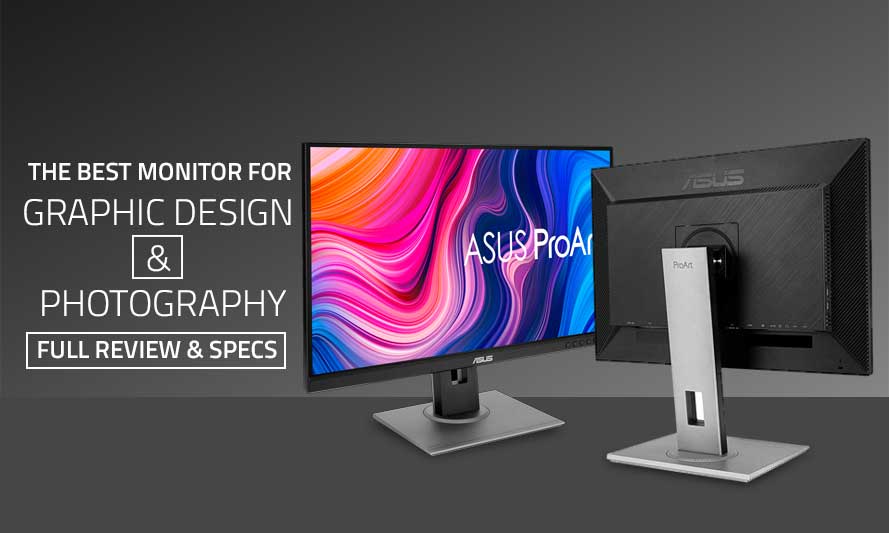
The ProArt is well designed in some respects, though there are design decisions that we didn’t like. Nevertheless, when it comes to ergonomics, it scores high. The ProArt automatically adjusts the image when rotated on its pivot.
This is due to its intentional design which provides a full range of adjustments for increased productivity and comfort. It offers swivel, pivot, tilt, and height adjustment options which is powered by the built-in G sensor. Your photos will automatically adjust to the screen’s orientation when you rotate the screen on its pivot effortlessly. You just need to download the Auto-Pivot software to get this working.
In terms of design, the monitor features a slim bezel frameless design which allows you to see more of your work and less of the monitor. You can even run multi-monitor setups to realize massive screen real estate which creates a seamless and pure visual experience in multi-monitor setups without the distraction of boundaries. Photographers and graphic designers can finally enjoy the visual processing of extended content with more focus and fewer distractions.
Finally, you can mount it on the wall with the included VESA mounting points at the back, that is, if you prefer this.
RELATED ARTICLE

Best Graphic Cards under 100 USD
We review a selection of the best GPUs you can grab for under a hundred. Full review.
Connectivity
This monitor has connectivity options aplenty. There’s HDMI, DVI, USB 3.0 hub, audio in/out jack, DisplayPort, and Mini DisplayPort. With these, you have more flexibility for connecting the ProArt to MacBooks, Ultrabooks, and other devices. You can also daisy chain multiple monitors using a single DisplayPort connection for better cable management and a tidier work environment.
It has also got a standard 3.5mm audio output jack for those who would prefer to listen to music while working. The only downside is the lack of a VGA connector, but that’s not an issue anyway. Who cares about VGA nowadays?
Specifications
| LCD Panel Type | 27” IPS LED |
| Resolution | WQHD 2560×1440 |
| Display Area | 596.74 x 335.66 mm |
| Brightness | 350cd/㎡ |
| Contrast Ratio | 1000:1 (Typ), 850:1 |
| ASUS Smart Contrast Ratio (ASCR) | 100000000:1 |
| Viewing Angles | 178 degrees H / 178 degrees V (Typical) |
| Response Time | GTGAVR: 5ms GTG |
| Backlight | White LED |
| Colors | 16.7 Million colors |
| Color gamut | sRGB:100% Coverage |
| Panel Surface | Anti-Glare type |
| Ports | DisplayPort 1.2 x 1 Mini DisplayPort x 1 HDMI(v1.4) x 1 Dual-Link DVI x 1 USB Hub : 4x USB 3.2 Gen 1 Type-A Earphone Jack : Yes PC Audio Input : Yes |
| Power | Power Consumption : <18.6W Power Off Mode : 0W (hard switch) Voltage : 100-240V, 50/60Hz |
| Ergonomics | Tilt : Yes (+35° ~ -5°) Swivel : Yes (+90° ~ -90°) Pivot : Yes (+90° ~ -90°) Height Adjustment : 0~150mm VESA Wall Mounting : 100x100mm Kensington Lock : Yes |
| Special Features | Eye Care, auto-rotate |
| Wall Mount | VESA® :100 x 100mm |
| Weight | 7.56 Kg |
| Package Contents | Audio cable Color pre-calibration report DisplayPort cable DisplayPort-to-miniDP cable Dual-link DVI cable HDMI cable Power cord Quick start guide USB Type-B to A cable Warranty Card |
RELATED ARTICLE

Best Laptop for Solidworks – Full Review
A roundup of the best engineering laptops for Solidworks and CAD…
Conclusion
The Asus ProArt 27-inch professional monitor is what you need if you want a high-performing monitor at a decent price. So if you need a computer monitor for graphic design, this is a good choice as it is just the right size and the cost is not prohibitive.
What’s your preferred monitor for graphic design? Share your thoughts in the comment section below.