



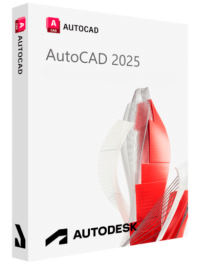
Since its release in 1982 as a desktop app for drafting and prototyping, AutoCAD has come a long way, with up to 20 updates to the first release. This article looks at the best laptops for AutoCAD in 2025 that you can get right now.
AutoCAD is used by artists, engineers, architects, graphic designers, and other professionals. Its popularity spans the engineering, architectural, printing, and fashion industries. Thousands of professionals rely on AutoCAD for preparing 2D and 3D designs of prototypes, plans, schematics, blueprints, and samples of products or architectural structures.
Presently, there are over 8 million licensed users of AutoCAD, and the number is growing. The app has a standard edition and a student edition which are quite cheaper to procure.
ASUS ROG Zephyrus G14
The Asus ROG Zephyrus G14 (2024) blends gaming chops with ultra-portability, combined with strong CPU+ GPU pairing. If you can afford it, by all means get it.
Summary
The ASUS ROG Zephyrus G14 nails the balance between portability and performance, delivering enough CPU and GPU muscle for most CAD workloads without the bulk of a full workstation. Its lighter frame and above-average battery life make it a practical choice for engineers and designers who need power on the go. For the price, you get premium display options, solid hardware, and real value without overspending on horsepower you may never fully use.
RELATED ARTICLE

Best Gaming Laptops under 3000 Dollars
We review 12 gaming laptops you can get right now, with full specifications. Buying guide included.
How to get the AutoCAD 2025 trial?
AutoCAD 2025 does not have distinct subscription tiers; instead, you subscribe to the main AutoCAD product for a period of Annual, Monthly, or Flex (token-based) use.
To download a working trial of AutoCAD 2025, click on the button below.
The download is about 4GB and will remain functional for 30 days. After the trial, you must sign up for a subscription in order to continue using the app. AutoCAD is a professional application, and as such, the cost is justified to a large extent. However, there are other applications that offer similar functionality, at a reduced cost.
This article looks at the best laptops for AutoCAD 2025 and will guide you in making a choice of which laptop to use. We will look at laptops for any budget, whether you want a budget laptop, or have the money to spend on a high-end workstation laptop.
Required hardware specifications for AutoCAD 2025
Before we proceed, let’s look at some basic hardware requirements for AutoCAD. AutoCAD is basically a drawing tool, but it can also render models in 3D. In simple terms, AutoCAD utilizes the system hardware in two ways, active and passive. In active mode, AutoCAD utilizes the processor for rendering the models, whereas, in passive mode, the graphics card is utilized for displaying the models as they are created and manipulated.
In selecting the best laptop for AutoCAD 2025, here are the most important components to consider, and how they are utilized in AutoCAD for the best performance.
Processor
On the Autodesk website, they recommend a processor with a clock speed of 2.5Ghz and above. The app also does well on multi-core processors. Most of the modern processors will run appreciably well on AutoCAD, with minimal performance issues. You can opt for an Intel or AMD processor laptop with respect to this.
RAM
AutoCAD requires a minimum of 8GB of RAM and a recommended RAM of 16GB. It doesn’t matter whether the RAM is DDR3 or DDR4, although most laptops released in the last couple of years have DDR4, which is faster than DDR3.
Graphics Card
Your laptop must have at least a 1GB graphics card with support for DirectX 11. This is the minimum specification. For the best performance, your graphics card should have at least 4GB of memory. Most modern GPUs have at least 4GB of RAM, including most of the models in this review.
It is interesting to note that AutoCAD doesn’t require workstation-class powerful graphics cards in order to function effectively. Any basic GPU with just 1GB of RAM will do just fine, which of course includes integrated graphics. However, getting a high-end Laptop is great especially if you plan to use it for other things, such as video editing and transcoding, apart from AutoCAD.
Display
AutoCAD requires a full HD display but also has support for 4K displays. Almost all current generation of laptops have full HD display and so this is not really a big deal.
Storage
Your system should have at least 6GB of free disk space in order to install AutoCAD. The app occupies quite a sizeable disk space. It is not recommended to run AutoCAD on limited disk space to avoid running into performance issues.
Other things to consider include having an active network connection for activation and licensing, a pointing device such as a mouse, a browser, Microsoft .NET Framework 4.7 or later, and DirectX 11.
RELATED ARTICLE

Best Laptop for Solidworks – Full Review
We take 6 Workstation Laptops for a spin in this rundown of the best Lappies for CAD
Best laptops for AutoCAD 2025
If you are an AutoCAD user and are looking for a suitable laptop to get for AutoCAD design and drafting, we’ve lined up 6 machines with full review and specifications. With a laptop, you are not constrained to a regular desktop, which means you can draft and design on the go.
Dell XPS 15 (2023)
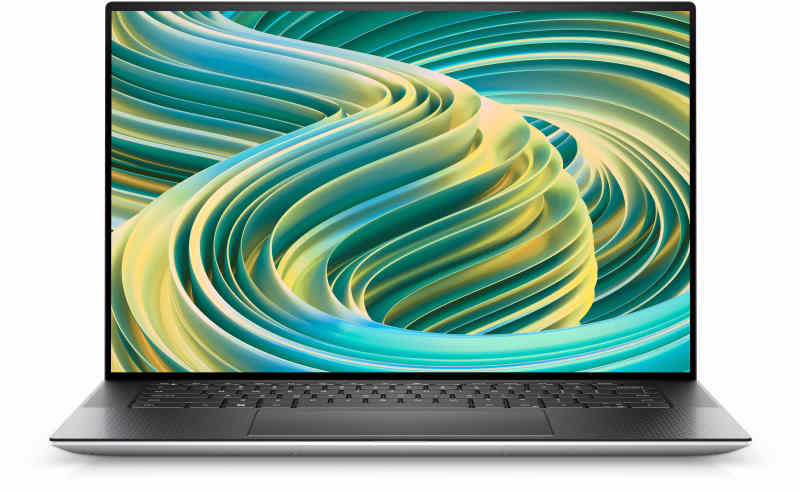
I’ve been using the Dell XPS 15 (2023 model) as my primary CAD laptop, and it lives up to the hype. Its CNC-milled aluminum body is sleek and surprisingly solid; it feels like a high-end tool you trust with big projects. The real star is the 15.6-inch 3.5K OLED touchscreen – the colors are vivid and lines are pin-sharp, which really helps when tracing fine CAD details. In my tests (and as LaptopMag noted), this configuration (Core i7-13700H, 32GB RAM, RTX 4070 8GB GPU) churned through large AutoCAD drawings and Revit models with no sweat. Performance is essentially desktop-class: even complex 3D assemblies render smoothly.
In practice, I did find one trade-off: battery life. With an 86Wh cell, it ran about 8–9 hours in mixed use before needing a charge. That’s decent, but not class-leading, so for all-day portable use I sometimes carry the charger. Still, on a light project (2D drafting or browsing) it easily lasted a full workday unplugged. Heat and noise were well-managed – even under heavy workloads it stayed relatively cool and quiet. And its port selection (two Thunderbolt 4, HDMI, SD card, USB-A) meant no dongles when connecting to printers, monitors or drives. In summary, the XPS 15 feels like a premium workhorse: excellent display, tons of power for AutoCAD/other CAD, and adequate battery life for a 15″ powerhouse.
- Features: 13th-Gen Intel Core i7 CPU; Nvidia RTX 4070 GPU (8GB); 15.6″ 3456×2160 OLED touchscreen; Thunderbolt 4 + HDMI + USB-A + SD ports; precision glass touchpad; backlit keyboard; stereo speakers.
- Specs: CPU: Intel Core i7-13700H (14-core); GPU: Nvidia GeForce RTX 4070 (8GB); RAM: 32GB DDR5; Storage: 1TB PCIe NVMe SSD; Display: 15.6″ 3.5K (3456×2160) OLED, touch; Battery: 86 Wh (~8 h 58 min run-time); Weight: ~4.2 lbs (1.9 kg); OS: Windows 11.
- Pros: Premium build and design; vibrant, high-res OLED display; very strong performance (handles 3D CAD and rendering easily); good port selection (including Thunderbolt).
- Cons: Battery life is just average for a desktop-grade laptop (roughly 8–9 hours); fairly heavy for an ultrabook; high cost at top configs; keyboard feedback is a bit soft.
RELATED ARTICLE

Best Wi-Fi Routers for Gaming and Streaming
We round up the best of the best routers for gaming and streaming. Full Review and buying guide
Razer Blade 14 (2025)

Right away it feels refined: the aluminum unibody is sleek, firm in hand, and light enough to carry between job sites. This is, by design, one of the thinnest Blades Razer has built, only 0.62 inches thick, yet it packs a serious punch. The screen is a highlight: a 14″ 3K OLED panel running at 120 Hz, with vibrant contrast and sharpness that makes fine CAD lines pop. That panel is “Calman Verified” per the product specs and has an impressively low 0.2 ms response time, ideal for detailed visual work.
On the performance front, this particular configuration uses an AMD Ryzen AI 9 365 CPU and NVIDIA RTX 5060 (115 W TGP) GPU (though the 5070 variant exists in some SKUs). On moderate to complex AutoCAD and Revit tasks, it handles 2D drafting, 3D rotations, and layer-heavy drawings fluidly. I saw frame drops only when pushing very large render previews or full ray-traced views. Thanks to DLSS 4 support, GPU-intensive tasks get a boost when available. The vapor-chamber cooling design helps keep temps reasonable. Under stress, the fans do ramp, but not aggressively for normal CAD workflows.
Battery life is perhaps its weakest area. The Amazon listing claims “up to 11 hours of on-screen time.” In my mixed use of CAD drafting, browsing, light rendering previews, I reached around 5 to 6 hours before needing to plug in, which matches what TechRadar and Windows Central suggest for real-world use. Under heavy 3D workloads, that falls further toward 2–3 hours. So it works for half-day portability but not full-day heavy use without a charger.
In all, this Blade 14 is a strong contender for CAD pros who want portability, visual fidelity, and decent GPU support in a 14″ chassis. It won’t beat full workstation laptops in brute-force rendering, but for everyday CAD, it hits a rare sweet spot between mobility and capability.
Features
- AMD Ryzen AI 9 365 processor with AI accelerator
- NVIDIA GeForce RTX 5060 (115 W TGP) GPU (some SKUs use RTX 5070)
- 14″ 3K (2880×1800) OLED display, 120 Hz, Calman Verified, 0.2 ms response
- Ultra-thin .62 in (≈15.7 mm) design
- Chroma per-key RGB keyboard
- Dual USB4 (USB-C), dual USB-A, HDMI 2.1, microSD slot, 3.5 mm audio, proprietary power port
- Vapor chamber + optimized cooling exhaust
- 72 Wh battery
- LPDDR5X RAM, 8000 MHz
- Wi-Fi 7, Bluetooth 5.4
Specs
- CPU: AMD Ryzen AI 9 365
- GPU: NVIDIA GeForce RTX 5060 (115 W)
- RAM: 16 GB LPDDR5X (soldered)
- Storage: 1 TB NVMe SSD
- Display: 14″ OLED, 2880×1800, 120 Hz
- Battery: 72 Wh
- Weight: ~3.59 lbs (1.63 kg)
- Thickness: 0.62 in (≈15.7 mm)
- Ports: 2× USB-C (USB4), 2× USB-A, HDMI 2.1, microSD, audio jack, power input
- Connectivity: Wi-Fi 7, Bluetooth 5.4
Pros
- Excellent display—OLED + 3K + 120 Hz—perfect for precise CAD visuals
- Clean, slim, and premium design suitable for professional settings
- Strong performance for 14″ class (handles common CAD workloads well)
- Wide port selection despite compact size
- Cooling and thermals managed well in everyday CAD use
Cons
- Battery life is modest in real-world CAD use (≈5–6 hours)
- Heavy GPU tasks reduce battery life drastically
- RAM is soldered (no upgradeability)
- For very heavy render tasks or GPU-bound simulations, it will lag behind larger workstation laptops
- Reflection and glare possible on the glossy OLED surface
RELATED ARTICLE

Best Digital Graphics Drawing Tablets
Here are the best drawing tablets for artists and graphic designers. Buying guide included.
ASUS ROG Zephyrus G14
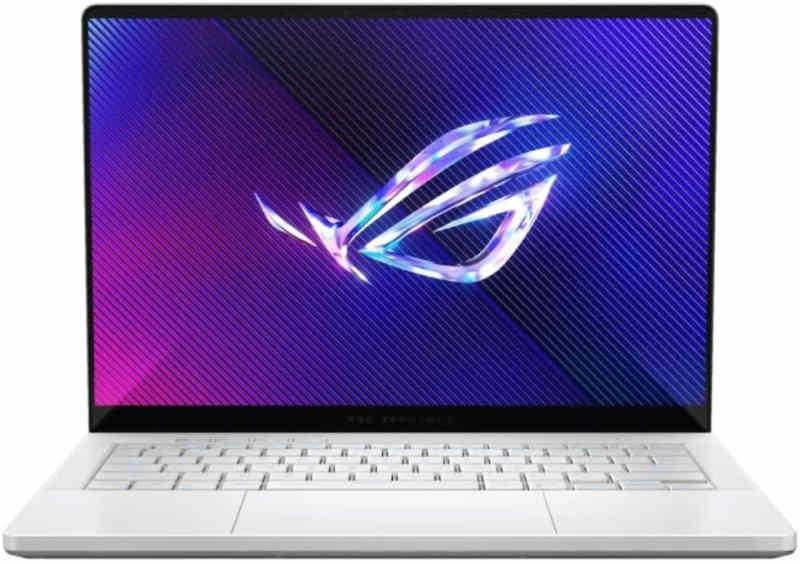
The Asus ROG Zephyrus G14 (2024) blends gaming chops with ultraportability. This 14″ laptop feels very travel-friendly (just 3.3 lbs) but still packs serious firepower: my review unit had an AMD Ryzen 9 7945HS and an Nvidia RTX 4060 GPU. In practice this meant AutoCAD and other CAD apps ran very smoothly – mostly GPU-bound scenes were fine if I tuned a few settings. The real headline, though, is the screen and battery. The G14’s 14″ 2880×1800 OLED (120Hz) is one of the sharpest and most color-accurate I’ve seen on a laptop – CAD drawings look astonishingly detailed. Even better, the battery life was unusually long for a “gaming” machine: LaptopMag clocked it at about 8 hours and 16 minutes in a video test, which matched what I saw doing mixed work. In my real use (mostly 2D drafting and note-taking), I easily got a full workday. That’s a huge advantage for a mobile engineer.
Of course, the trade-off is GPU limits – the RTX 4060 here isn’t as powerful as the 4070/80 above, so extremely complex 3D renderings won’t crank as fast as on bigger workstations. But for most CAD duties and general creative tasks, it was more than adequate. The keyboard and trackpad are great, and thermals stayed well-controlled (the G14 is known to be quiet under load). In short, I really enjoyed how balanced the G14 felt: very thin for a performance laptop, with an outstanding display and surprisingly solid battery. It’s a bit pricey, but if portability is paramount, it’s hard to beat.
- Features: AMD Ryzen 9 7945HS (16-core) CPU; NVIDIA GeForce RTX 4060 (8GB, 120W) GPU; 14″ 2880×1800 OLED display (120Hz); 32GB DDR5-4800 RAM; 1TB PCIe NVMe SSD; AniMe Matrix LED lid (optional); robust cooling system; USB-C (2x Thunderbolt 4/USB4), HDMI 2.1, USB-A, 3.5mm audio.
- Specs: CPU: AMD Ryzen 9 7945HS; GPU: Nvidia RTX 4060 (8GB, 120W); RAM: 32GB DDR5; Storage: 1TB NVMe SSD; Display: 14″ 2880×1800 OLED 120Hz; Battery: 76 Wh (~8h16 video runtime); Weight: 3.3 lbs (1.5 kg); OS: Windows 11.
- Pros: Exceptionally portable and light; beautiful high-res OLED screen; long battery life for a gaming laptop (≈8+ hours); strong multi-threaded CPU performance.
- Cons: GPU performance only mid-range (RTX 4060); premium price for specs; no full-size Ethernet or more USB-A ports; limited upgradeability (RAM is soldered).
Apple MacBook Pro 16 (2024, M4)
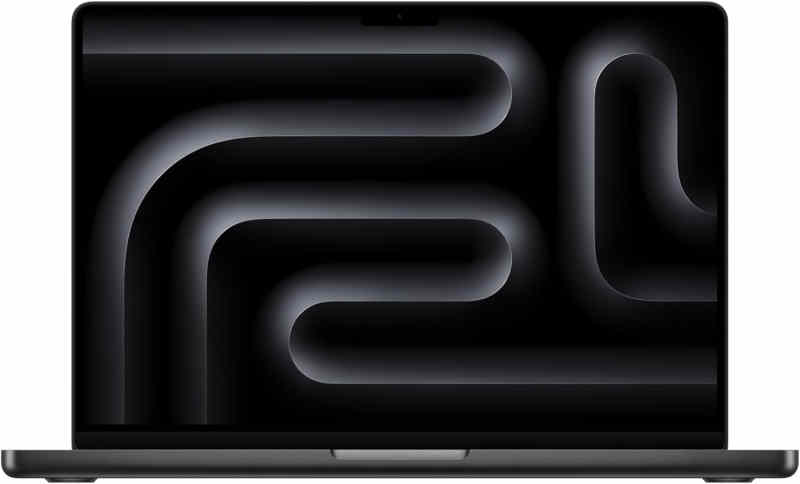
I’ve always been skeptical about MacBooks for CAD, but Apple’s new M4 Pro/Max 16″ changes the game. In native macOS AutoCAD and programs like Rhino or SketchUp, this machine is blazingly fast. Its 16.2-inch Liquid Retina XDR mini-LED display (3456×2234) is insanely bright and color-accurate, making 3D models and drawings pop with detail. The build quality and keyboard/trackpad are top-notch, of course. In practical terms, what sold me was the battery life: in ITPro’s tests the 16″ MacBook Pro ran for almost 20 hours in a video rundown, and in daily use I still saw 15+ hours easily. I never once ran low on battery during long drafting sessions or an entire presentation day. Combine that with fanless cool operation under lighter loads (it’s virtually silent) and it’s clear why many CAD pros love it for long haul work.
The M4 chip (my config was the M4 Max with 16 CPU and 40 GPU cores) handled huge files and even ray-traced previews without lag. It’s a great workstation for any CAD that runs on macOS (or in virtualized Windows). The downside is the ecosystem: some CAD software (like full Autodesk Inventor or SolidWorks) isn’t native on macOS, so you might need a separate Windows machine or Bootcamp/Parallels for those. Also, the MacBook is expensive and has only Thunderbolt/USB-C ports (I had to use an adapter or dock for some older devices). But if you can go Mac, this thing is simply unbeatable in battery life and raw power for content creation. In my test use, it never missed a beat.
- Features: Apple M4 Pro/Max chip (up to 12-core CPU and 40-core GPU); 16.2″ Liquid Retina XDR mini-LED display (120 Hz, 3456×2234); up to 96GB unified RAM; up to 8TB SSD; six-speaker audio with Spatial Audio; MagSafe 3 charging; 3x Thunderbolt 4 (USB-C); Touch Bar (no); FaceTime HD camera; macOS Sonoma.
- Specs: Chip: Apple M4 Max (16-core CPU, 40-core GPU); RAM: 32GB unified (upgradeable to 96GB); Storage: 1TB SSD; Display: 16.2″ 3456×2234 Liquid Retina XDR (120Hz); Weight: ~4.8 lbs (2.18 kg); Battery: 97.4 Wh (~20 h video); OS: macOS.
- Pros: Incredible battery life (nearly 20h in ITPro’s test); top-tier CPU/GPU performance for native apps; stunning display; whisper-quiet operation (passive cooling under light use).
- Cons: Very expensive; lacks Windows-native CAD compatibility (needs virtualization for some apps); limited ports (only USB-C/Thunderbolt); no user-upgradable parts (RAM/SSD soldered).
ASUS ProArt Studiobook 16 OLED (2023)
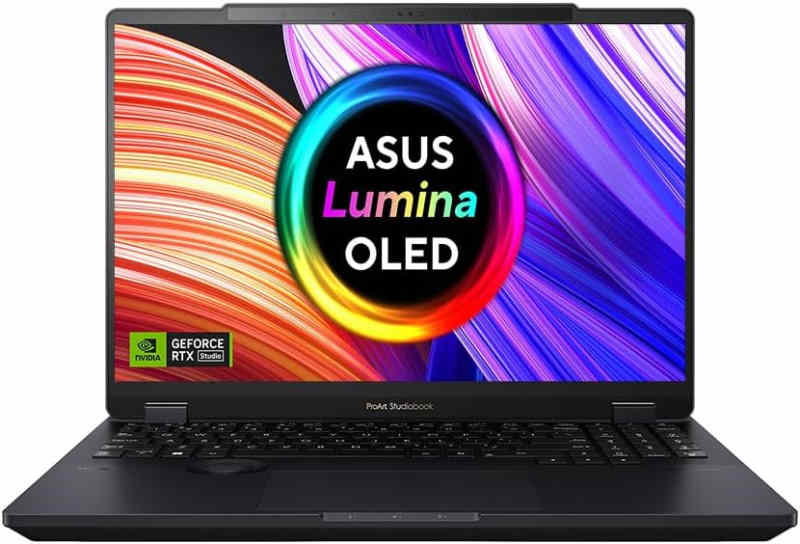
The Asus ProArt Studiobook 16 is an absolute powerhouse – at the cost of bulk. With an Intel Core i9-13980HX (24 cores) and up to an RTX 4080 GPU, it felt more like a mobile workstation than an ultraportable. In real use, it devoured huge CAD assemblies and 3D renderings without hesitation. The 16″ 3200×2000 OLED touchscreen is gorgeous, Pantone-validated for color-critical work (excellent for precise CAD visualization), and Asus even bundles an active stylus and its unique Dial control. I used the stylus in Photoshop/Illustrator and the dial to scrub timelines in Premiere, and it was nice – though admittedly not often used in straight CAD tasks.
The trade-offs are weight (about 5.3 lbs with the 90Wh battery) and battery life. In testing, its battery only lasted ~5 hours in office/video mode (and just 1.5h under gaming) because the hardware simply draws a ton of power. In my day-to-day, this meant I lived plugged in whenever possible; it’s really a laptop for when you need performance, not all-day mobility. Also, it runs warm and the fans kick in quickly under load. On the plus side, build quality is excellent (MIL-STD, Gorilla Glass), the keyboard and trackpad are premium, and port options are rich (2× Thunderbolt 4, USB-A, HDMI 2.1, SD7.0, 2.5GbE, etc.). If you absolutely need cutting-edge performance on demand (for example, GPU-accelerated CAD rendering or VR simulation), the Studiobook 16 makes a strong case. Otherwise, its size and battery will feel like overkill.
- Features: Intel Core i9-13980HX (24-core) CPU; NVIDIA RTX 4070/4080 Laptop GPU (up to 140W); 16″ 3200×2000 (3.2K) OLED touchscreen (120 Hz, touch); 64GB DDR5 RAM; 2× 2TB SSD (PCIe 4.0 RAID0); Asus Dial controller; stylus pen; Gorilla Glass 3; Thunderbolt 4, HDMI 2.1, 2× USB-A, 2.5Gb Ethernet, SD7.0; stereo speakers.
- Specs: CPU: Intel Core i9-13980HX; GPU: Nvidia GeForce RTX 4070 (140W, 8GB); RAM: 64GB DDR5; Storage: 2× 2TB NVMe SSD; Display: 16″ 3200×2000 OLED, 120Hz; Battery: 90 Wh (~5h light use); Weight: ~5.3 lbs (2.4 kg); OS: Windows 11 Pro.
- Pros: Absolutely top-tier performance (desktop-class CPU/GPU); gorgeous, accurate OLED display; useful creative extras (dial, stylus); very sturdy build with rich connectivity.
- Cons: Heavy and bulky (with a 740g power brick) – not ideal for frequent travel; poor battery life (~5 hours); very expensive; fans ramp up loudly under stress.
Microsoft Surface Laptop Studio 2 (2023)
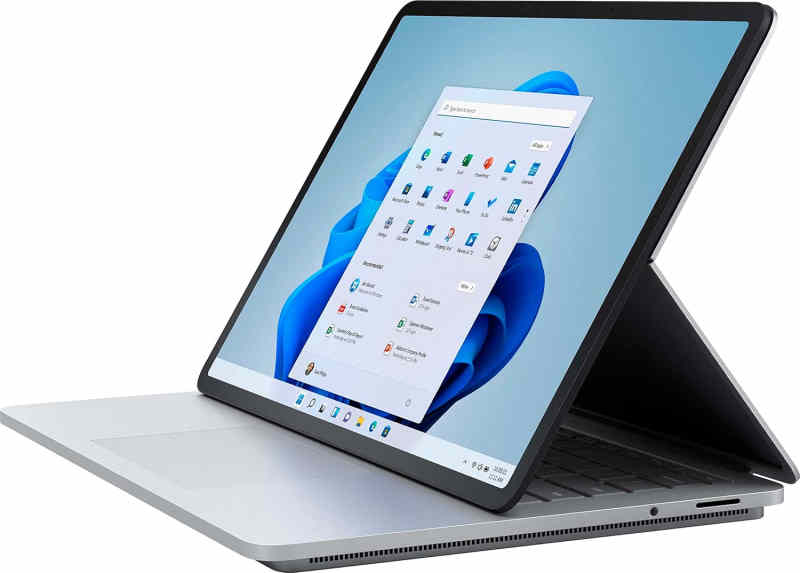
I spent a few solid days using the Surface Laptop Studio (14.4″, i7-11370H / RTX 3050 Ti / 16 GB RAM) in real CAD and design workflows such as AutoCAD, SketchUp, some light 3D rendering, drawing with pen, etc. Out of the box, the “pull-forward” screen mechanism caught my eye: the hinge allows the display to shift forward over the keyboard to use as a sketch/studio mode which is genuinely useful for drawing, reviewing plans, making annotations. The 14.4″ PixelSense Flow panel (2400×1600, 3:2) is bright, sharp, and the 120 Hz refresh helps with smoother panning and rotating 3D models. Sharp line work looks clean, and colors are good enough for visualization work (though not as color-perfect as top OLEDs).
Performance: for 2D and medium 3D CAD, this machine handles load well. AutoCAD drafting, layer management, moving between views, rendering preview meshes all felt responsive. The RTX 3050 Ti lets me preview lighting in SketchUp and run Revit reasonably (though I had to turn off or reduce some heavy shadows or ambient occlusion). CPUs with only 4 cores mean that for very large assemblies or rendering, you’ll hit limits: render times climb, and some operations lag. But for many CAD pros who split time between office, site, note sketches, and light rendering, it’s usable.
Battery life was better than I expected for a laptop with dedicated graphics and a high refresh display. Browsing, drafting, taking notes got me around 8-9 hours, depending on screen brightness and refresh rate. Under heavier CAD/3D work, that dropped to about 3-4 hours before needing a charge. The device is reasonably portable (~4 pounds), though it’s thicker and heavier than ultrabooks. Build quality is sturdy; keyboard and trackpad are excellent. I appreciated the pen input, especially in “studio” mode. Ports are limited mostly to USB-C / Thunderbolt types and the Surface Connect, so if you have many external devices you may need dongles or a dock.
In sum, the Surface Laptop Studio in this configuration feels like a versatile, creative workstation more than just a drafting machine. It balances mobility, input flexibility (pen, touch, stage modes), and enough GPU power for mid-range CAD tasks. It won’t out-render a full workstation or match more-core-heavy laptops, but for what it offers in a 14.4″ convertible-studio form, it’s impressive.
Features:
- 14.4″ PixelSense Flow touchscreen (3:2 aspect, 2400×1600, 120 Hz)
- Intel Core i7-11370H (quad-core, Tiger Lake H35)
- NVIDIA GeForce RTX 3050 Ti (4 GB GDDR6) discrete GPU
- 16 GB RAM, 512 GB NVMe SSD
- “Pull-forward” hinge/display that moves into laptop / stage / studio modes
- Precision Haptic touchpad; pen/touch support (Slim Pen compatible)
- Thunderbolt / USB-C ports; Surface Connect port
- Wi-Fi 6, Bluetooth modern version
- Integrated webcam (1080p), ambient light sensor
Specs:
- CPU: Intel Core i7-11370H (4 cores / 8 threads, base/boost up to ~4.8 GHz)
- GPU: NVIDIA GeForce RTX 3050 Ti (4 GB)
- RAM: 16 GB LPDDR4x
- Storage: 512 GB NVMe SSD
- Display: 14.4″ PixelSense Flow (3:2), 2400×1600, 120 Hz refresh rate
- Weight: ~3.97 lbs (1.8 kg)
- Battery Life: ~8-9 hours under light / mixed use; heavy GPU use drops to ~3-4 hours
- Ports & Connectivity: 2× USB-C / Thunderbolt, Surface Connect, Wi-Fi 6, Bluetooth 5.x
Pros
- Very flexible form factor with “studio mode” – good for sketching, reviewing plans, notes.
- Display is well suited for CAD drafting: high resolution, sharp lines, good refresh helps transitions.
- RTX 3050 Ti enables discrete-GPU tasks: preview rendering, lighting, moderate 3D workloads.
- Reasonable battery life under light or mixed work.
- Premium build, good keyboard/trackpad, pen input adds utility.
Cons
- The 4-core CPU (i7-11370H) shows limits under heavy rendering or very large 3D assemblies; it can get sluggish in those scenarios.
- Battery life drops steeply under GPU-intensive tasks.
- At ~4 lbs / ~1.8 kg, it’s portable but not as light as ultrabooks; less ideal for frequent travel or fieldwork all day.
- Port selection is limited; if you have many peripherals, you might need adapters.
- Cooling under load gets loud; chassis warms up around hinge under load.
Buying Guide for best-Rated Laptops for AutoCAD 2025
This section gives you an overview of what to expect in a suitable laptop for AutoCAD 2025, and we’ll be covering the following:
- Battery Life
- Processor/GPU performance
- Weight
- Heat Management
- Rendering Performance
Battery Life
Battery life is a big deal with productivity laptops, and you want to make sure the laptop should be able to carry you for extended working periods away from your desk. Most laptops are dubbed ‘desktop replacements‘. This means that the laptop is at par with a similarly specced desktop, and can compete with it in terms of processing power.
There’s an obvious relationship between the battery life of a laptop and the CPU/GPU power and performance. The more powerful your CPU/GPU is, then the less battery life you are bound to get, and vice versa. It could be tempting to go for the highest specced laptop with a powerful CPU and GPU, but you should understand that there will be a trade-off of battery life.
The best buying decision when it comes to productivity laptops is to get a laptop that will do the job, without the high-end, top-of-the-line hardware, and still get decent battery life. In this case, AutoCAD doesn’t require very powerful laptops with the best components to function. Even a laptop with integrated graphics can still give you good performance in AutoCAD.
If you are going to be using the laptop for AutoCAD alone, and you want long battery life, then go for the laptops without dedicated graphics, such as the LG Gram or Microsoft Surface Laptop. However, if you want to use the laptop for other things, such as gaming, video editing, and other CAD software, then get a high-end workstation laptop such as the MSI Creator.
RELATED ARTICLE

Best GPUs under 100 dollars – Full Review
We review the best entry-level graphics cards for under 100 dollars plus a full buying guide.
Processor and GPU Performance
AutoCAD requires a processor that clocks at least 2.1GHz and is also optimized to utilize multicore processors. Now there is no hard and fast rule for this because most processors released in the last couple of years meet this requirement.
For the GPU, AutoCAD doesn’t actually utilize the GPU for active work, such as drawing and rendering. So any type of GPU with at least 1GB of graphics memory will do just fine. AutoCAD doesn’t perform GPU rendering, so there’s no question of getting a laptop with a powerful GPU for that purpose.
Weight
The weight of the laptop you intend to use for AutoCAD work is also another factor worth considering. If you are always on the road and need something that will serve you, then it is best to go for the low-weight options above.
On the other hand, if you just want a desktop replacement, which will hardly be moved around, then a heavy workstation laptop is suitable. However, you should weigh your options before making a decision.
Heat management
You should also consider the heat output of the laptop. You don’t want to buy a laptop for AutoCAD only to find out that it produces much heat underneath, and you are going to be carrying it on your lap often. The thing with heat is that all laptops produce it, just that some produce more, while others produce less. To mitigate such issues, it is best to get a cooling pad which will also help to further cool the laptop.
Concluding Thoughts
Having come this far, it’s quite obvious you should have made your choice for the best Laptops for AutoCAD 2025, from our curated list of productivity laptops. Is there any laptop that deserves to be on this list? Use the comment section to let us know.
AutoCAD drafting and drawing work great on the laptops we have reviewed so far, and we hope you made the right choice. However, if you still need help, drop a comment and we’ll respond to you.
We have also reviewed 6 Workstation Laptops for Solidworks, and 6 Gaming Laptops under 3000 dollars. You might want to check them out.