


Wacom Intuos Pro Medium
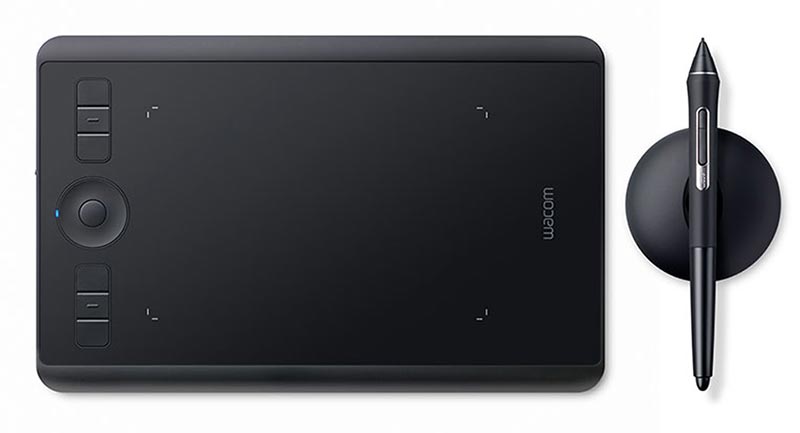
Here comes this budget to mid-range graphics tablet from the industry leader, Wacom. With over 35 years of experience in digital pen tablet technology, you can’t go wrong with Wacom.
The Intuos Pro Medium has two other siblings, the Intuos Pro Small and Large, both covered in this review. To a large extent, the Intuos Pro Medium is a great graphics tablet for beginners or even professional artists, though we wouldn’t say the same for experienced users wanting to upgrade.
It is made from premium-grade black anodized aluminum and fiberglass composite resin, which gives it a smooth feel. The unit is quite lightweight, with the back entirely metal. You just have to be extra careful with handling, because it can easily slip and fall.
It also features ExpressKeys™ & Touch Ring which provide quick and easy shortcuts for everyday tasks while drawing. The eight application-specific ExpressKeys™ are programmable for your favorite keyboard shortcuts. The Touch Ring provides control of canvas rotation, brush size, scrolling, & other functions.
There’s also the drawing area measuring 8.7” x 5.8” is equipped with multi-touch capability, which allows you to use this as you would a smartphone screen. Swipe, pinch, zoom, you name it. That’s cool. You’ll find it quite handy when carrying out image editing, illustration, or design work.
This product also has wireless Bluetooth capability, which allows you to work off your desk. This can enhance productivity to a large extent, especially if you need to move off your desk, while still sketching or drawing. You also have the option to connect with the supplied USB cord.
What about the pen? The Pro Pen gives you accurate pen performance without the need to recharge it – it’s battery-free. With 8192 levels of pressure sensitivity, tilt support, and lag-free tracking, the Pro Pen 2 gives you absolute ability to do more. In addition, with your purchase comes 2 months of Adobe Creative Cloud Photography Plan.
Finally, you can use this tablet with or without Paper mode. To transform to Paper Mode, you would just need to buy the Paper Clip and Finetip Pen to use the tablet in Paper mode.
A very annoying downside of this product is the fact that the pen wears out quickly, and this is largely due to the textured sheet that is supplied with the tab. It is way too rough, though you can get “texture sheets” separately which will alter the surface of the pad. We are still wondering why Wacom didn’t keep the default tablet surface as smooth as the previous Intuos 3?
KEY FEATURES OF THE WACOM INTUOS PRO MEDIUM
- Dimensions Length 13.2 x Width 8.5 x Height 0.3 inches
- An active area of 8.7 x 5.8 inches
- 8 ExpressKeys™ for customization
- Pro Pen 2 with 8192 pressure levels
- Bluetooth wireless capability
- Multi-touch gestures
PROS
- Lightweight
- Work off-the-desk capability
- Sleek design and feel
CONS
- The pen nib wears down quickly
- The useless textured sheet which quickly wears out nibs
RELATED ARTICLE

Best Wi-Fi Routers for Gaming and Streaming
We round up the best of the best routers for gaming and streaming. Full Review and buying guide
Huion Inspiroy H640P

The Huion H640P is an entry-level graphics drawing tablet from Huion. This is a bold-faced attempt at making graphics tablets affordable for the masses, with a mouth-watering price point. If you are a beginner and want to try your hands on a graphics tab, the H640P is for you.
This low-budget graphics drawing tablet is well-built, well-designed, and has a load of functions you will find in other higher-priced brands. The chassis has a sleek build, with a thickness of just 0.3 inches/8mm and a weight of 0.6lbs. You can actually use this tablet on a PC and with an Android phone to create drawings. The drawing area measure 6.3×3.9 inches, or 100 x 62.5mm on a phone. Just know that you need the OTG Adapter in order to connect it to a phone.
It also has 6 customizable keys with which you can assign handy shortcuts to make your drawing life easier, and not forgetting the 8192 levels of pressure sensitivity. This is quite impressive for a budget graphics drawing tablet. The included battery-free pen provides a more accurate and natural drawing experience, and also comes with 8 extra nibs for replacement purposes.
The only issue we don’t like is the fact that its pressure sensitivity didn’t work in Gimp, though it works well in other apps, and it has a rather short cord and no wireless connectivity. The product comes with a 1-year warranty, though you’re pretty much on your own if you have issues because Huion support is quite disappointing. There are many reports of no responses to support requests to them.
Overall, the H640P is a great choice for beginners on a tight budget. You might want to consider it if you want an inexpensive drawing tablet to get you started in digital art.
KEY FEATURES OF THE HUION H640P AT A GLANCE
- 6 Programmable keys on the tab
- Dimensions: Length 10.23 x Width 5.81 x Thickness 0.30 inches
- 8192 levels of pressure sensitivity
- Works on PC and Android
PROS
- Great price
- Battery-free pen
- Responsive
- Sleek design & Lightweight
- High-pressure levels
CONS
- No wireless connectivity
- Has issues in Gimp
- Lacks touch capabilities
- Bad support
Wacom MobileStudio Pro 13

Wacom claims their MobileStudio Pro 13 graphics drawing tablet is their most powerful graphics tablet to date. Well, with all due respect, that claim is plausible, going by the specifications of this creative workhorse of a tablet.
The MobileStudio Pro 13 is built for drawing, detailed concept art, 3D sculpting and painting, motion graphics, and advanced image editing and retouching. More than just being a drawing tablet – it’s also a mobile PC equipped with hardware like Intel Core i5 or i7 processors, blistering fast SSD storage, and upgradeable RAM. The flagship MobileStudio Pro 16 even has a Quadro GPU. Impressive. Obviously, this is one of the best graphics tablets with a screen available right now, that is, if money isn’t a problem.
This model features an Intel i7-8559U processor, 16GB system memory, 512GB SSD & Thunderbolt 3 connectivity. The graphics is powered by Intel Iris Plus 655 graphics chip. With these specs, you have a device that lets you do more, with the included touch-friendly Windows 10 Professional.
For a start, this tablet is average in size, measuring just 14.4 inches in length, 9 inches in width, and 0.6 inches in thickness. For the weight, it just weighs a little over 3lbs. While this is not too heavy, it doesn’t compare to a contemporary like the iPad Pro tablet which weighs far less.
The screen is an impressive 13.3 inches WQHD (2560 x 1440) resolution, with a working area of 11.6 x 6.5 inches. Another cool feature is the touch ability of the screen, allowing you to do those things you normally do on a smartphone – pinch, swipe, zoom, pan. You also get to extend your desktop screen to this screen as a secondary display, allowing you to work natively in your app of choice.
You also get 6 customizable, application-specific ExpressKeys™ which allow you to assign specific shortcuts inside your drawing apps. There is also the 4-axis controlled Touch Ring, with a knob in the center. All these are highly customizable within your apps, and the Wacom software helps make this possible. Not forgetting the 8,192 levels of pressure sensitivity the device provides, giving you complete control and precision in your projects.
On the sides, there are power buttons, volume buttons, an SD Card slot, and a 3.5mm audio port. You’ll also find 3 USB-C ports for peripherals and charging, and a Kensington Security slot for securing the device. The unit is also equipped with a 5 Megapixel front-facing HD camera for taking pictures on the go.
The unit also comes with a stand, though the stand isn’t that good and lots of people complained about it. However, the stand has 3 angles of elevation to hold the tablet while you work, if you don’t want to place it flat on a desk.
The included Wacom Pro Pen 2 is a delight to work with. The Pen comes with color rings, spare nibs, and a nib removal hole with which you can easily remove a nib for replacement. The function buttons on the Pen are also great for precise control.
In terms of battery life, this is another area this device falls short. At most, you will get up to 4 hours with light usage. If you are going to be actively drawing with the device, you will get at most 2-3 hours, and that’s if you turn down the screen brightness. If you’re going to be using this away from your desk a lot, then it would be wise to take your charger along.
Another thing worth noting is that for you to connect this unit to a PC and use it productively, you must separately purchase the Wacom Link accessory for around $70. We don’t find this palatable, coupled with the high-ticket cost of this device. But then, the choice is yours.
Overall, the MobileStudio Pro 13 is a great device with lots of customization options and features, including the fact that it is a dual-purpose device, a graphics tab, and a PC at the same time. But then, the issues we observed, together with the high cost, don’t convince us. There are better alternatives, at a lower cost. But if you are a Wacom fan, and don’t really care about the money, then this is probably for you.
KEY FEATURES OF THE WACOM MOBILESTUDIO PRO 13
- Dimensions Length 14.4”, Width 9” Height 0.6”
- A working area of 11.6 x 6.5 inches
- Hardware: Intel Core i7, 16GB RAM, 512GB SSD
- Windows 10 Pro
- 6 programmable ExpressKeys™ and 4-axis Touch Ring
- Connectivity: SD Card slot, 3.5mm audio port, 3 USB-C ports, Kensington Security slot
- HD Camera
- Pro Pen included with extra nibs
- Weight: 3.13 lbs
PROS
- Dual function as graphics tablet/full Windows PC
- Upgradable hardware
- A large touch-enabled screen size of 13 inches
- Plenty of customizable buttons
CONS
- Issues with the stand
- Separate purchase of Wacom Link
- Pricey
- Unsatisfactory battery life